Building and Using a Question Banks
The Question bank is an organized repository for all the questions in your course, separate from any quiz activities that might use them. It is good practice to create categories to organize your questions. This makes it easier to find questions and it also allows you to use random questions as well as reuse questions in later quizzes.
Starting with Moodle 5.0, question banks can also be shared across courses. If you teach more than one course, you can access and reuse the question banks from any of your courses in another — without needing to export and re-import questions. This makes it easy for teaching teams to build a shared pool of questions once and use it consistently across multiple courses or sections.
By default, questions are shared only with teachers who are enrolled in the same course. To give a colleague access to your questions without enrolling them as a full editing teacher, you can enroll them with a non-editing teacher role, which by default includes the permissions needed to view and use (but not edit) the questions in your bank.
Frequently Asked Questions
Courses now have their own shared question banks, and you can pull questions from any course where you’re a teacher.
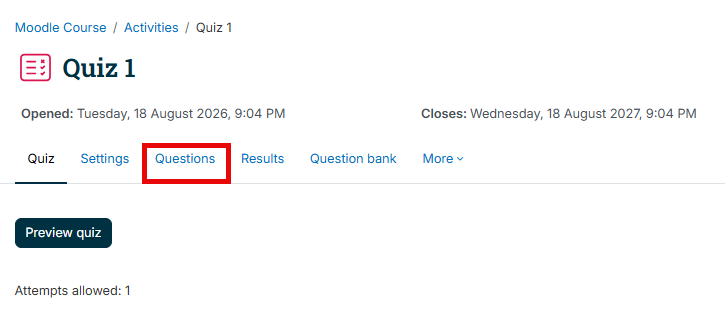
All you need to do is open a quiz, select Questions
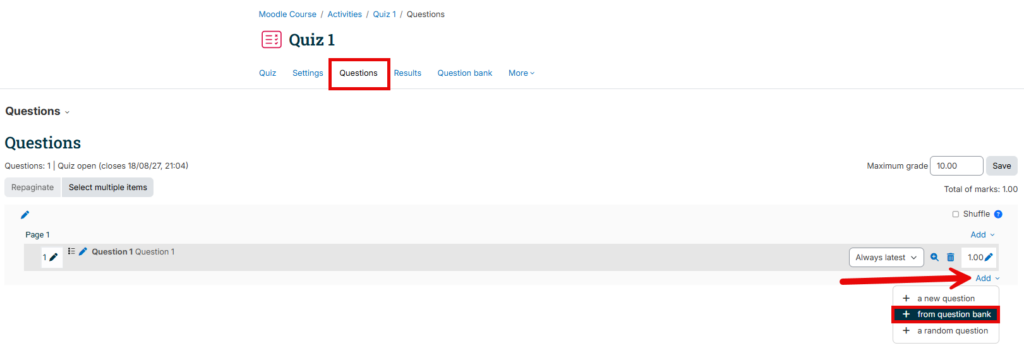
Add a question from a question bank
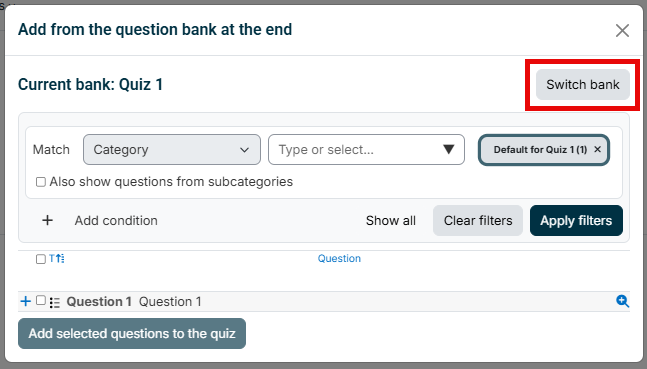
Switch and choose which bank. And you can reach across your other courses.
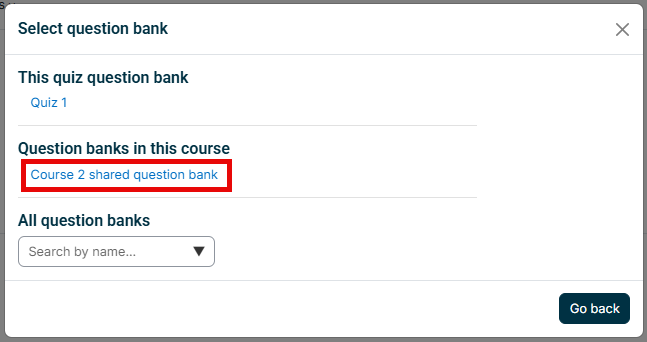
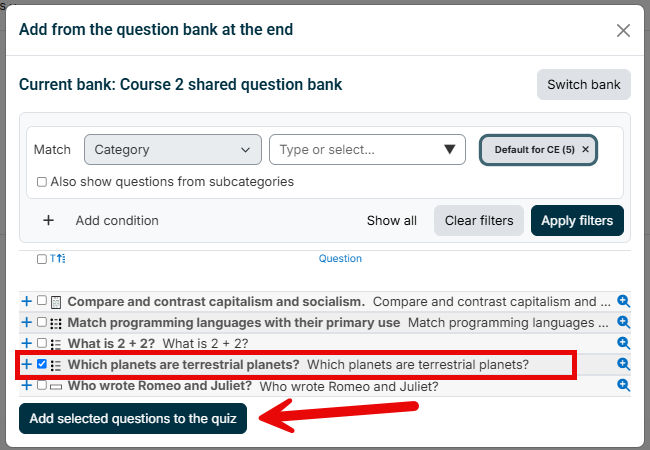
Questions borrowed this way are labeled so you always know where they came from.
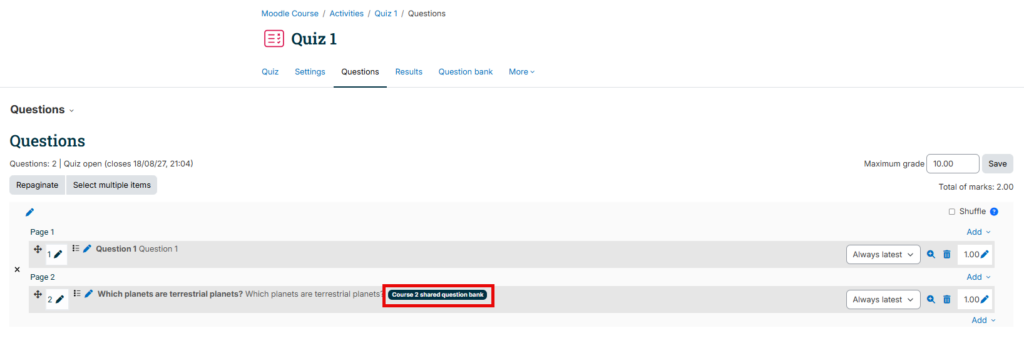
There’s an important catch here. Questions you create from inside a quiz live only in that quiz and can’t be shared or moved anywhere else. If you want reusable questions, build them in a course question bank first, then add them to a quiz.
With the update, every existing course gets a shared question bank created automatically with its current questions in it.
To edit quiz questions:
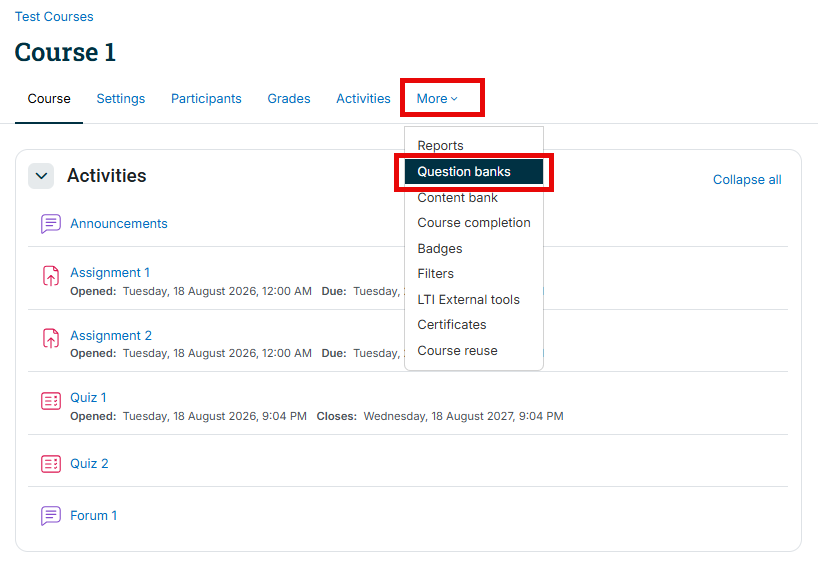
- In your course, at the top of the page and under your course title select More.

- From the drop-down list, select Question bank.
- Select the question bank that contains the question you would like to edit.
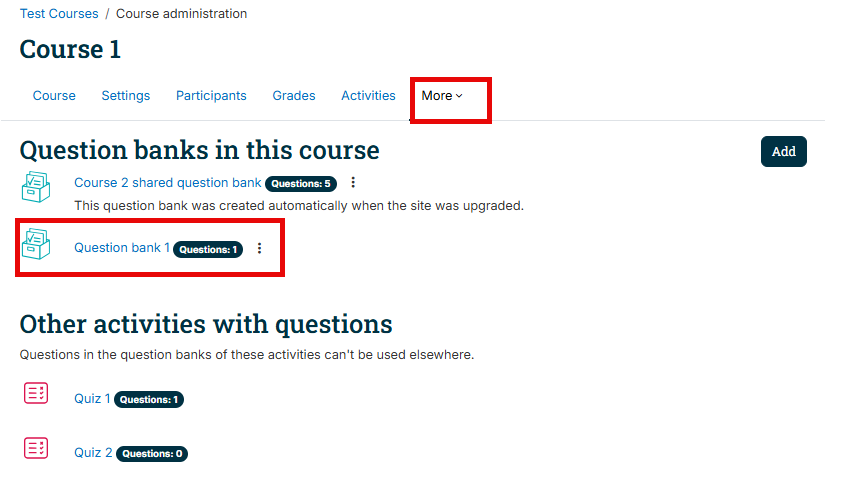
Ensure Questions is selected and, select the question(s) category you would like , from the Select a category drop-down list
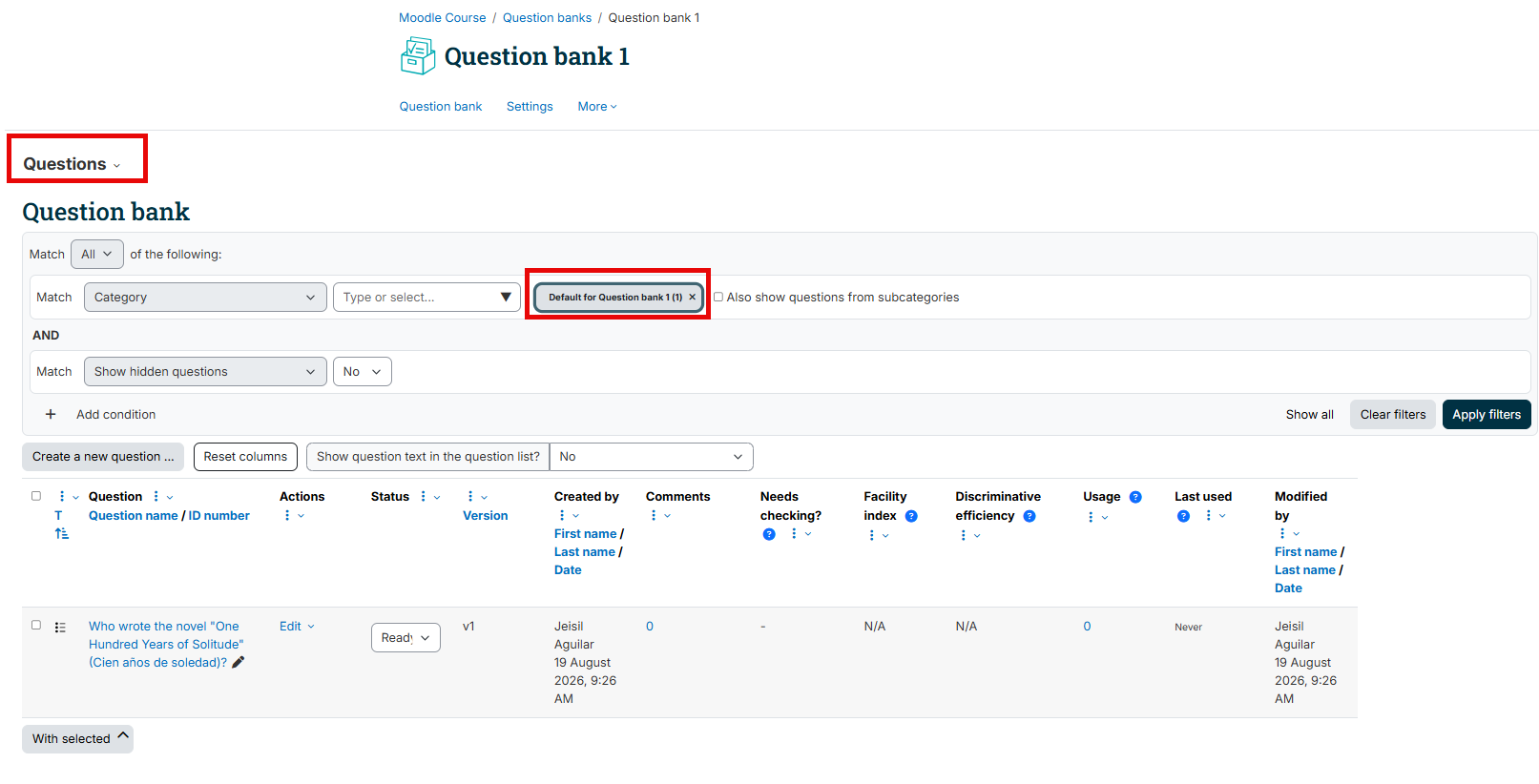
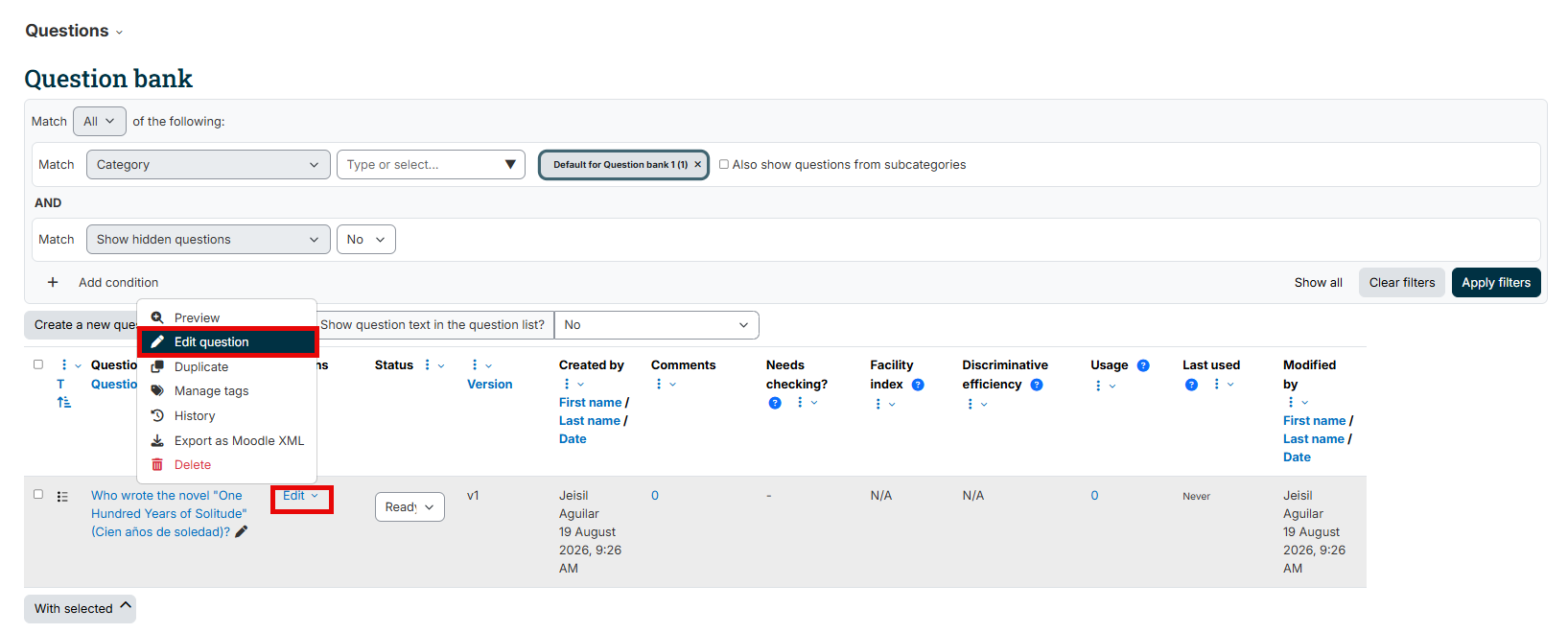
- Select the Edit link for the question you want to edit and select Edit question
- Make the appropriate edits then scroll down and click Save changes
Yes, you can! To preview questions:
- In your course, at the top of the page and under the course title, select More
- Select Question banks from the drop-down list.
- Select the question bank that contains the question you would like to preview.
Ensure Questions are selected and select the question(s) category you would like from the Select a category drop-down list
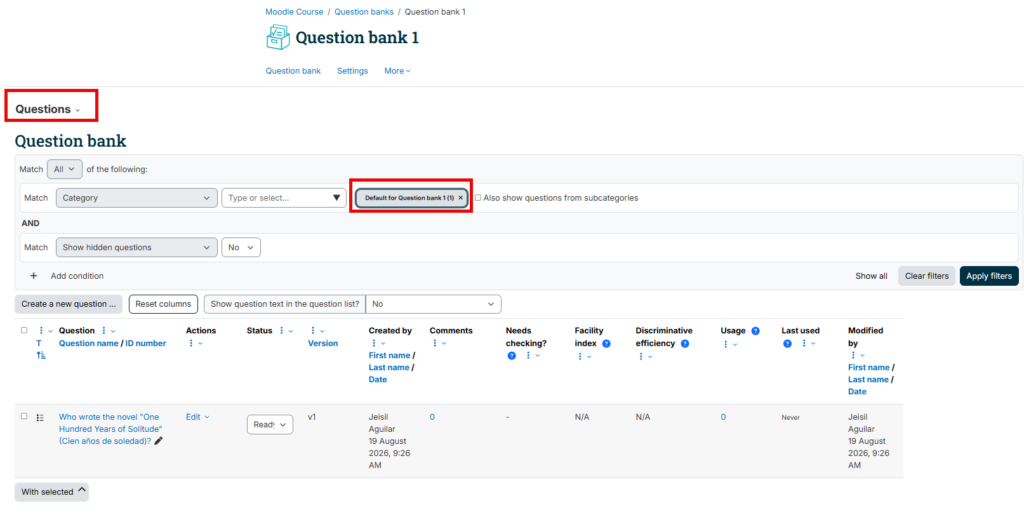
- Select the Edit link for the question you want to edit and select Preview
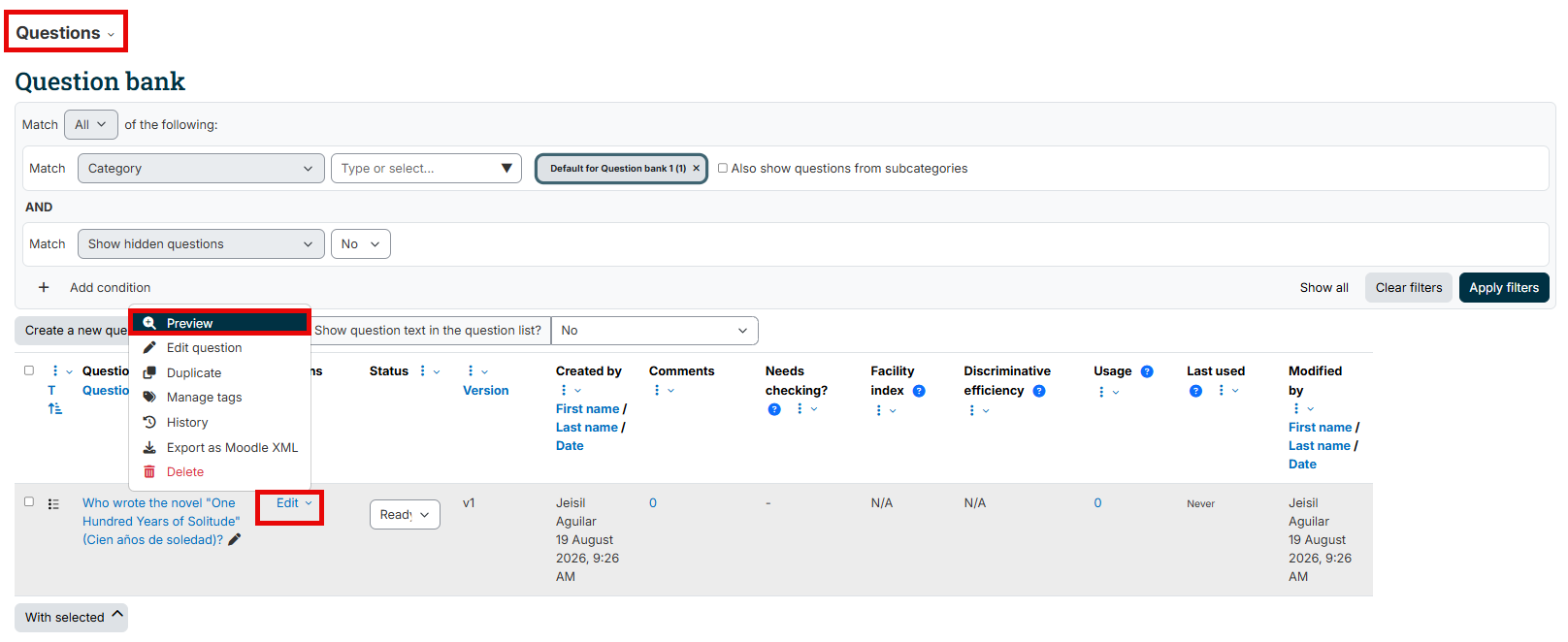
Note
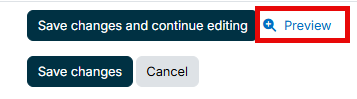
You are also able to preview a question while you are editing it, click Preview located on the right side of the Save changes and continue editing button. If the Preview link is not visible click the Save changes and continue editing button to display the link.
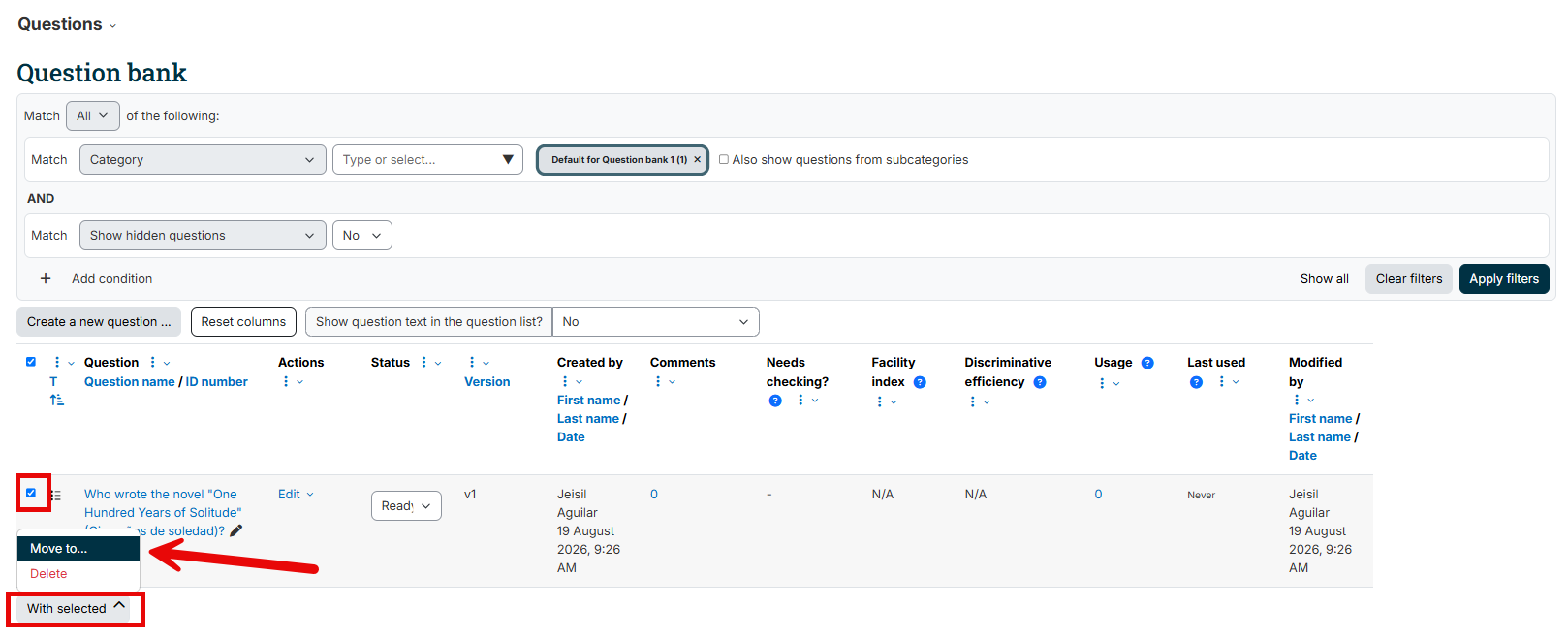
Yes, you can move questions from one category to another! To move questions:
- In your course, at the top of the page and under the course title, select More
- Select Question banks from the drop-down list.
- Select the question bank that contains the question you would like to edit.
Ensure Questions are selected and select the question(s) category you would like in the Select a categorydrop-down list
- Select the question(s) you want to move by checking the left-most checkbox. Then scroll down and select the With selected drop-down at the bottom of the page, and Move to. Then select the category you want to move the question(s) into.
Yes, you can use the Aiken format! The Aiken format lets you create multiple-choice or true-false questions using a simple, human-readable format that you can save as a plain text file and import into a Moodle course.
Creating Your Questions
The most important things you need to know about using this format are:
- You must create a .txt file. We recommend you use Notepad or Notepad++ for Windows or TextEdit on Mac.
- You must save your file in UTF-8 format (you will be prompted to choose upon saving the file). Special characters will cause errors, so use simple quotation marks and avoid formatting like bold or italics. You can add formatting in once the questions are uploaded.
- All answer letters and the word answer MUST be capitalized. See example.
What are the tallest trees on Earth?
A. Coast Redwood
B. Coast Douglas Fir
C. Giant Sequoia
D. Sitka Spruce
ANSWER: A

What is the world’s most venomous fish?
A) Scorpion fish
B) Lion fish
C) Stonefish
D) Toadfish
ANSWER: C
Notice the following details:
- You do not number the questions.
- You can follow the answer letter with a ) or a . but you must be consistent within your question set.
- There is a single space after the ) or . and before the response.
- ANSWER must be followed with a : and a single space.
Issues of spacing and capitalization must be attended to for the format to work.
Importing the File
Once you have formatted the document correctly:
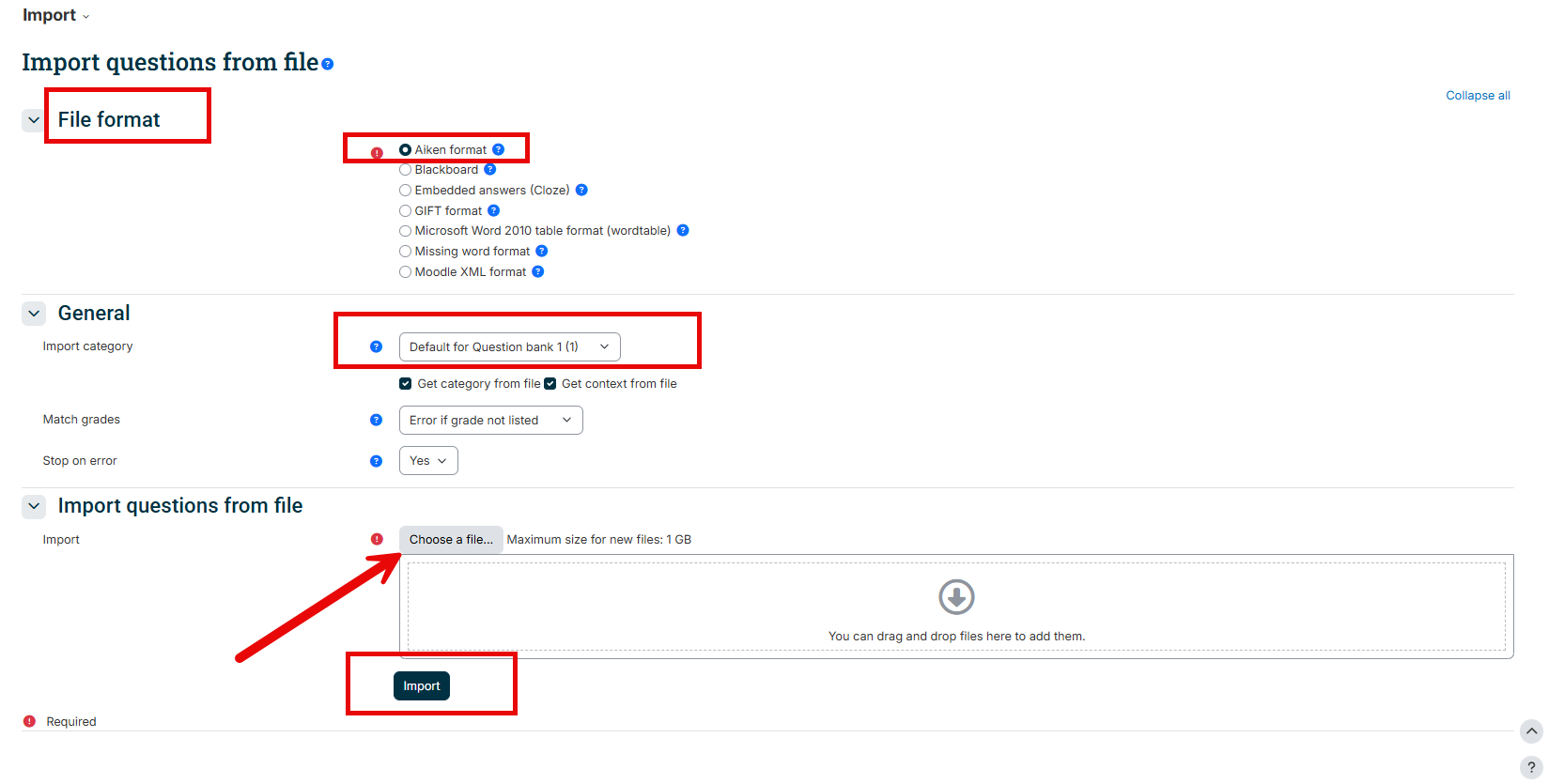
- In your course, at the top of the page and under the course title, select More, and then Question bank.
- Select Import.
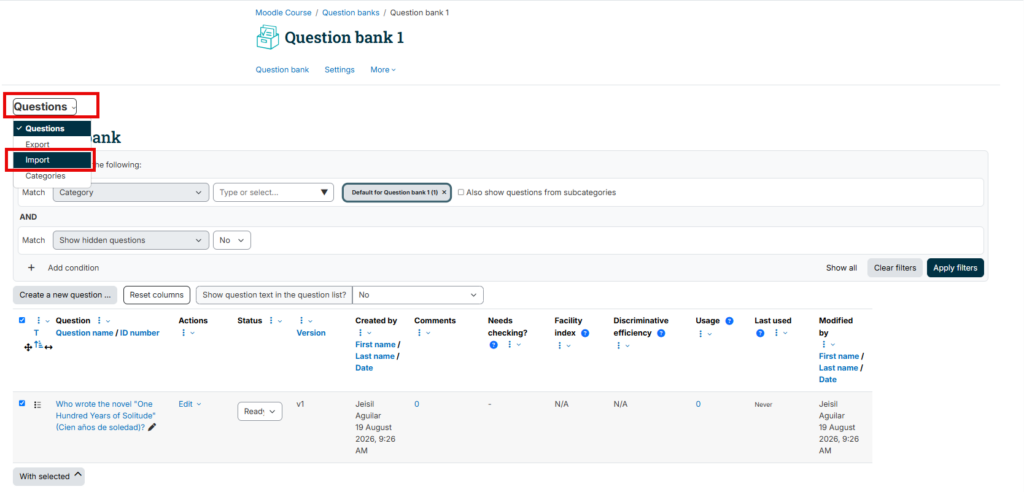
- Upload your file! (You will find your questions in your course’s question bank)