Before we dive into learning about Moodle’s gradebook it is important to consider how you will be collecting assessment items. The reason for this is many activities in Moodle automatically enter a line item in the gradebook so these activities need to be added to your course before you can accurately set up your gradebook.
If you are assigning assignments, how are you collecting them? Are students printing a hard copy to give to you in class, or are you having your students submit via an assignment drop box in Moodle. If students are submitting via Moodle, you will need to add the assignment drop box to your course. However, you can keep it hidden until you finalize the due dates and description!
If you are asking students to complete quizzes, how are you facilitating these? Are students completing quizzes in class, or are you having your students complete them online in Moodle. If through Moodle, you will need to add a quiz activity to your course as well. However, you can keep it hidden until you finalize the day and time students will take the quiz!
Other activities that are automatically added to the gradebook are Forum when Whole forum grading is turned on, some H5P activities, Lesson and Workshop. We do have tips and tricks for removing these activities from grade calculations but for now let’s stick to the basics.
Moodle’s gradebook is powerful, there are many ways grades can be calculated, aggregated and displayed. There are many settings and a variety of ways to accomplish what you want so, at times, it can seem pretty overwhelming. The Gradebook setup video below is not meant to be an exhaustive tutorial, rather it is meant to be a high level overview that outlines how to do some of the most requested tasks. Check out the video below and come see us in virtual office hours for further help with your gradebook.
Understanding the Gradebook in Moodle
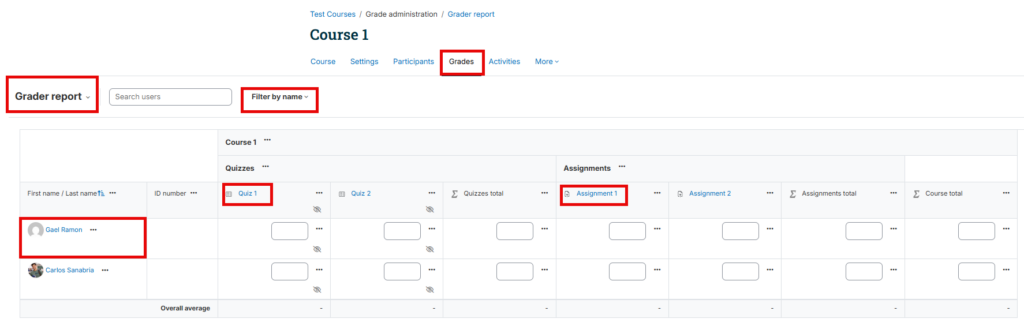
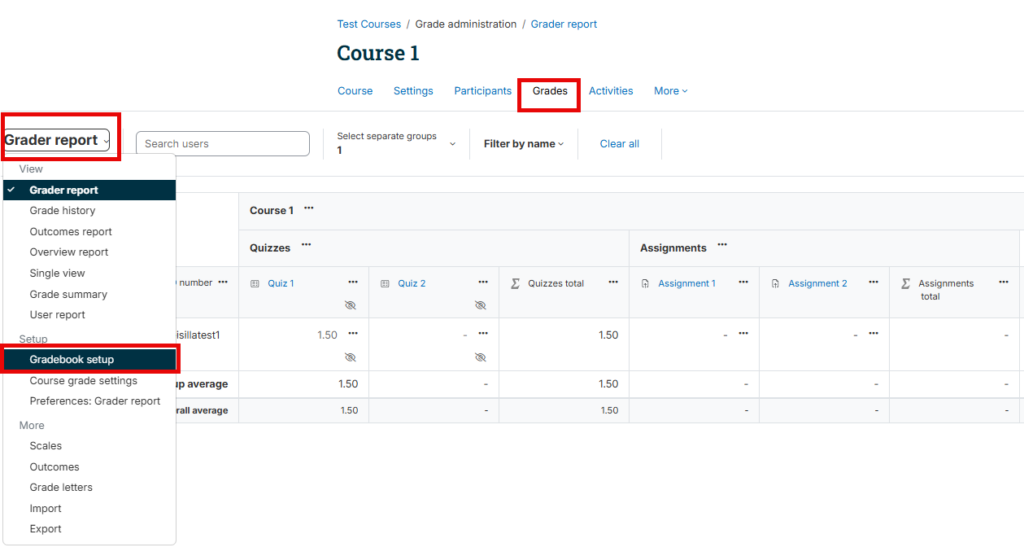
When you click to open the Grades tab, you’ll go directly to the Grader Report. From there, you can open the menu to access other views of the gradebook, view activities, see grades for each student, and even view the totals.
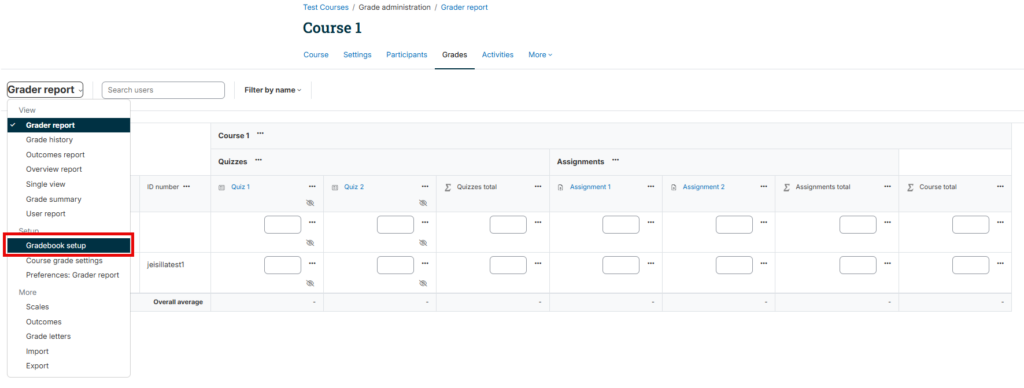
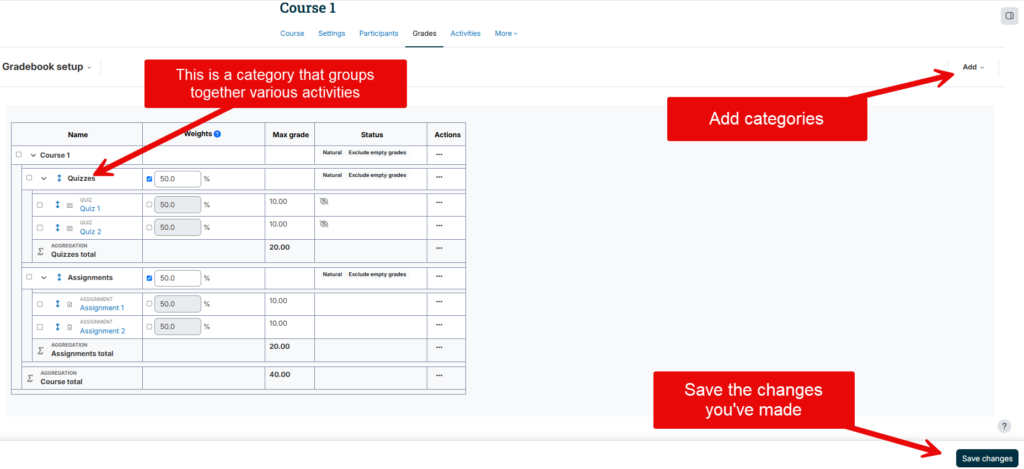
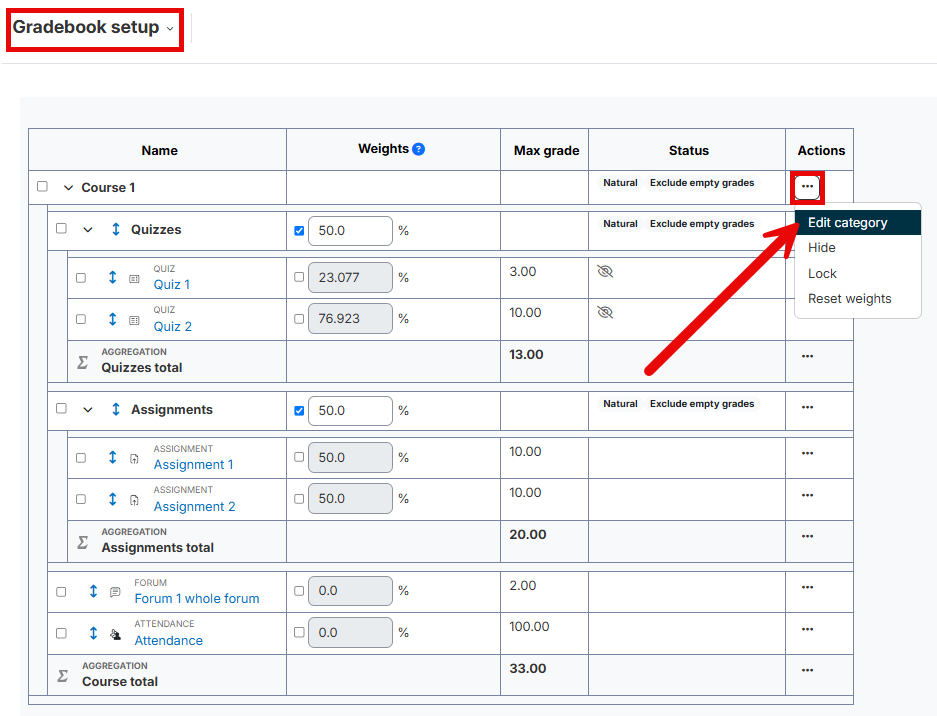
When you open the menu located next to the Grader Report, you can access the Gradebook Setup. There, you can create categories, hide activities, and adjust their weightings relative to the course total.
Frequently Asked Questions
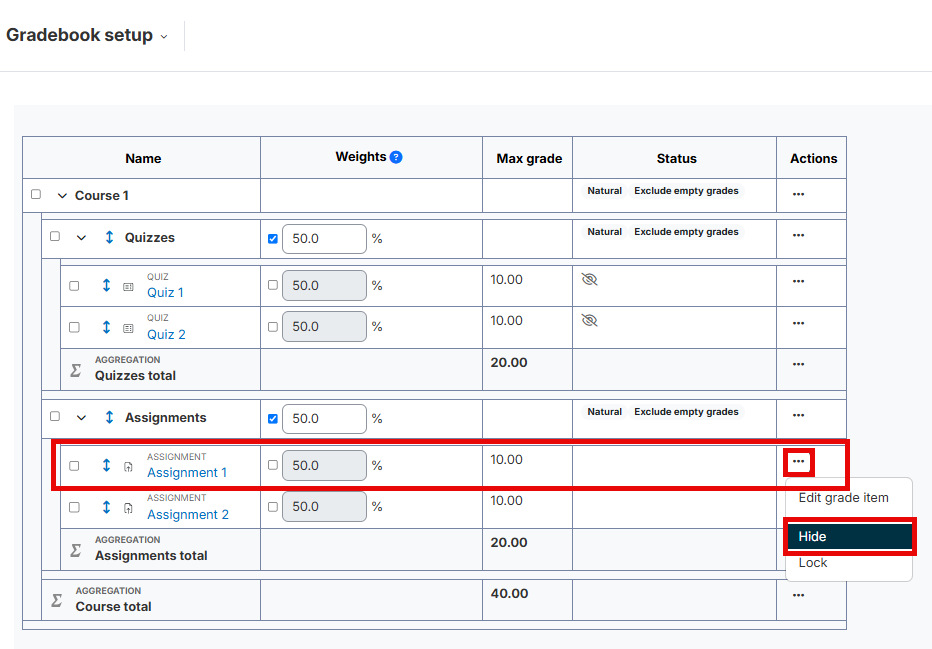
The visibility of students’ grades in Moodle is controlled by you, the course teacher. So, maybe you have set aside a few days to mark your final assignment, and you don’t want students to be able to view their mark until you have completed marking the final for everyone. You can hide this grade until you are ready.
To do this:
Go to your course main page and under the course title, click Grades. Select the Grader report drop-down list, scroll down and choose Gradebook setup. Then, find the activity or item you want to hide and next to it, under actions select Edit then select Hide.
Note
If an item is in blue in the gradebook setup (i.e. glossary), then students will see this grade. If the item is greyed out, then students will not be able to see the grade for this item.
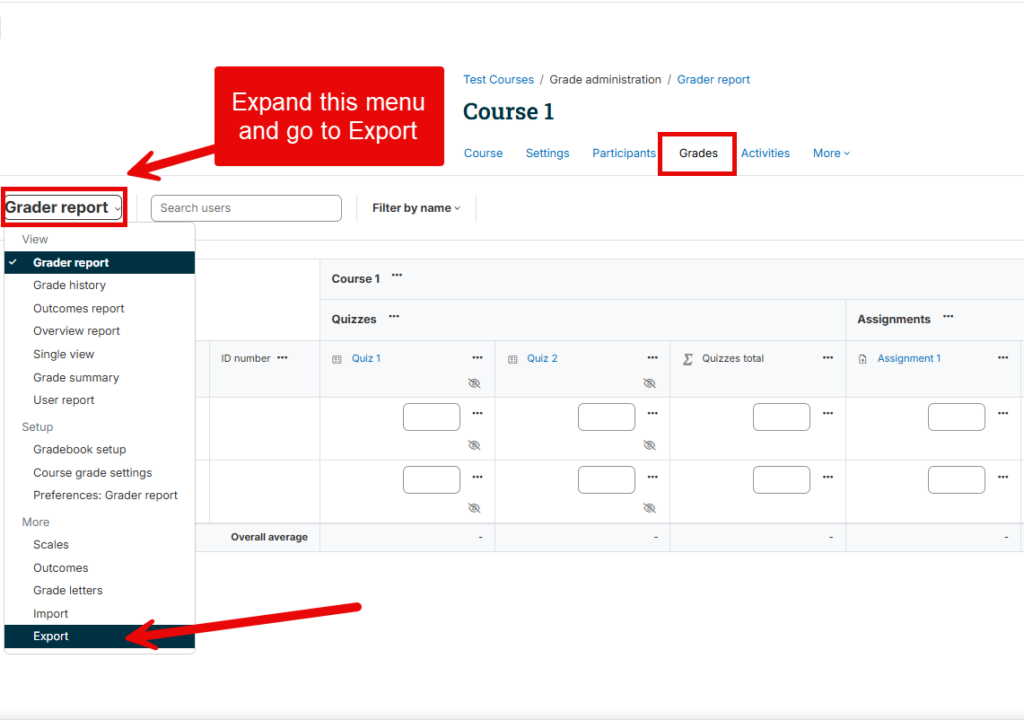
1. Go to course main page, under the course title, click Grades.
2. On the left, select the Grader Report drop-down list, then select the last option or Export (under the subheading of more).
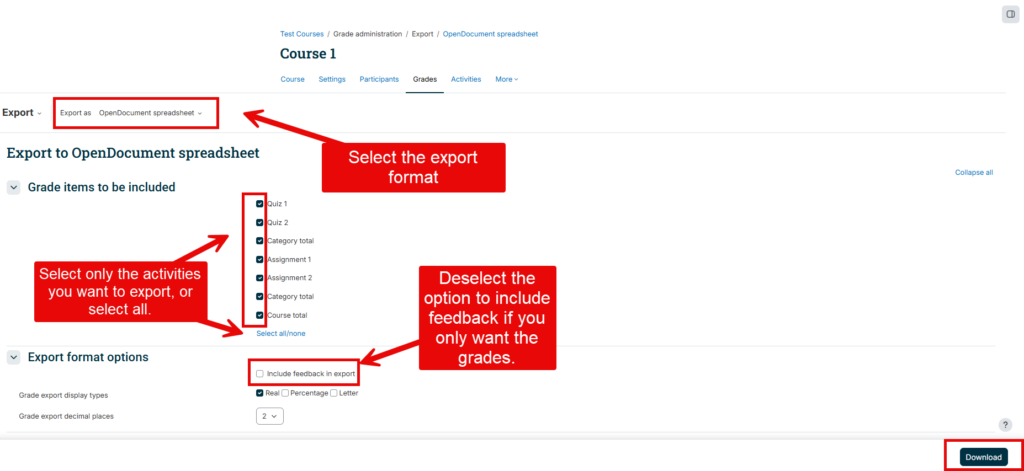
3. Under Grade items to be included, deselect which graded items you do not want to be included in this spreadsheet. OR, click Select all/none in blue at the bottom of this section and then check off which items you would like included.
4. To the right of the Export drop-down list, use the OpenDocument spreadsheet drop-down list to select what type of file you would like to export under this. For instance, I always select Excel spreadsheet.
5. Then, under the export format options, select the options you would like and check off the box next to Include feedback in export if you would like your feedback to the students also included in your spreadsheet.
6. Click Download.
You can preview what your students see when they go to look at their grades, if you like. This could be useful if a student keeps telling you they cannot see their course total or certain grades in your class and you want to see what they are seeing and if the issue lies with your gradebook setup or not.
To do this:
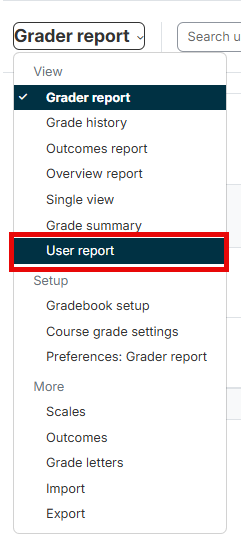
Go to your course’s home page and, below the course title, select “Grades.” Next, on the left, select the “Grader Report” drop-down list and choose “User Report.”
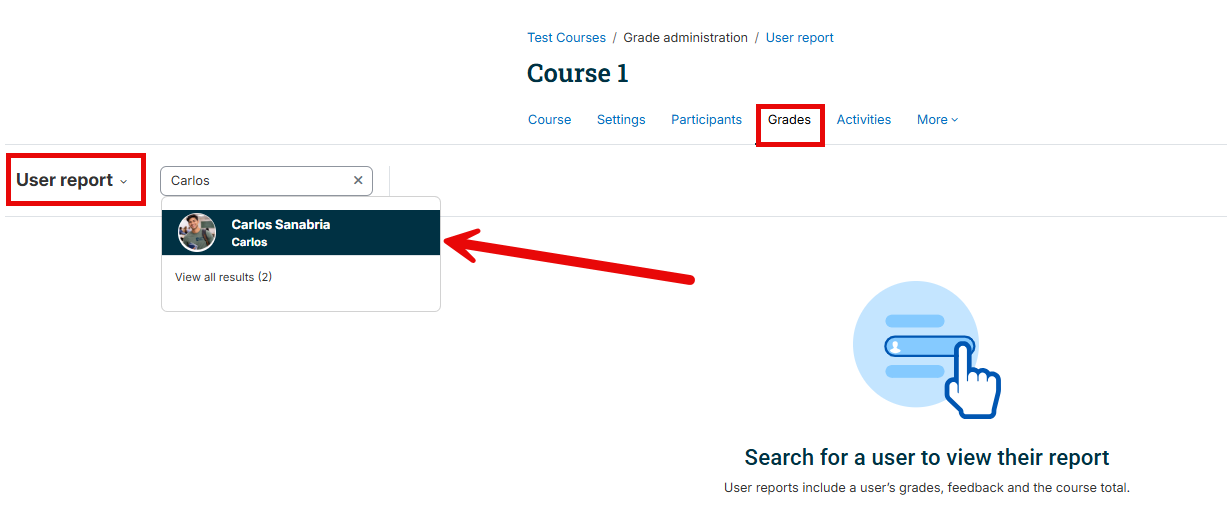
Enter the student’s name in the search bar. You’ll see that hidden items are not visible to the student, while those that are displayed are visible to them.
To change the maximum grade for a grade item go to the gradebook setup and click Edit and then Edit settings for the grade item you wish to update. Then on this screen update the maximum grade field and click the Save changes button at the bottom of the page.
Note
If the grade item is an activity the maximum grade will have to be updated in the activity itself.
If you have already entered grades for the grade item or activity, you will have to select whether or not you want to rescale the existing grades.
If you choose Yes Moodle will rescale any existing grades so the percentage remains the same, for example if a students mark was 5/10 = 50% and you want the maximum grade to be 5, Moodle will rescale the students grade to be 2.5/5 = 50%.
If you choose No Moodle will not rescale any existing grades so the percentage does not remain the same, for example if a students mark was 5/10 = 50% and you want the maximum grade to 5 Moodle will keep the students grade the same so the grade now becomes 5/5 = 100%.
By default, in the gradebook, students see the numerical mark value they received on an assignment (e.g. they would see 15 marks [out of a possible 20 marks]). To change this to percentage or letter (or a combination of the options), follow the instructions below.
In the gradebook:
- Go to your course main page, under the course title select Grades.
- Then, on the left, select the Grader Report drop-down list, and select Course grade settings (under the subheading of Setup).
- Under the Grade item settings heading, you will see Grade display type
- Use the drop-down menu to change how grades are displayed – real, percentage, letter, or a combination of these options
- Note: “Real” is the numerical grade the student received, based on the maximum number of marks for the assignment (see example below)

Example:
If an assignment is out of 50 marks, and the student received a grade of 40 marks, this is how their grade would be displayed in the grade book, depending on how the grade display type is set.
- If the grade display type is set to Default (Real) (which is the default), the student would see 40.00 displayed in their grade book
- If the grade display type is set to Real (percentage), the student would see 40.00 (80.00%) displayed in their grade book
- If the grade display type is set to Letter (percentage), the student would see A- (80.00%)
Important note: Letter grades in Moodle reflect the TRU Undergraduate scale, by default. If this needs to be adjusted for different contexts, this can be done in the “Letters” tab in the gradebook.
By default, in the gradebook, students see the “course total” as the total numerical mark value they received on all of their combined assignments (e.g. they would see 480 marks [out of a possible 500 marks]). To change this to percentage or letter (or a combination of the options), follow the instructions below.
In the gradebook:
1. Go to your course main page, under the course title select Grades.
2. Then, on the left, select the Grader Report drop-down list, and select Gradebook setup (under the subheading Setup).
3. At the top of the table under the Actions column, opposite the name of the course, select the Edit link, then Edit settings.
4. Under the Category total heading, click Show more…
5. Under Grade display type, set the desired course total display type (real, percentage, letter, or a combination of the options)
6. Click the Save changes button
Note: When you go back to the grader report to view the student course totals, make sure your edit mode is set to “off” to view it as percentages (or whatever you set it to).